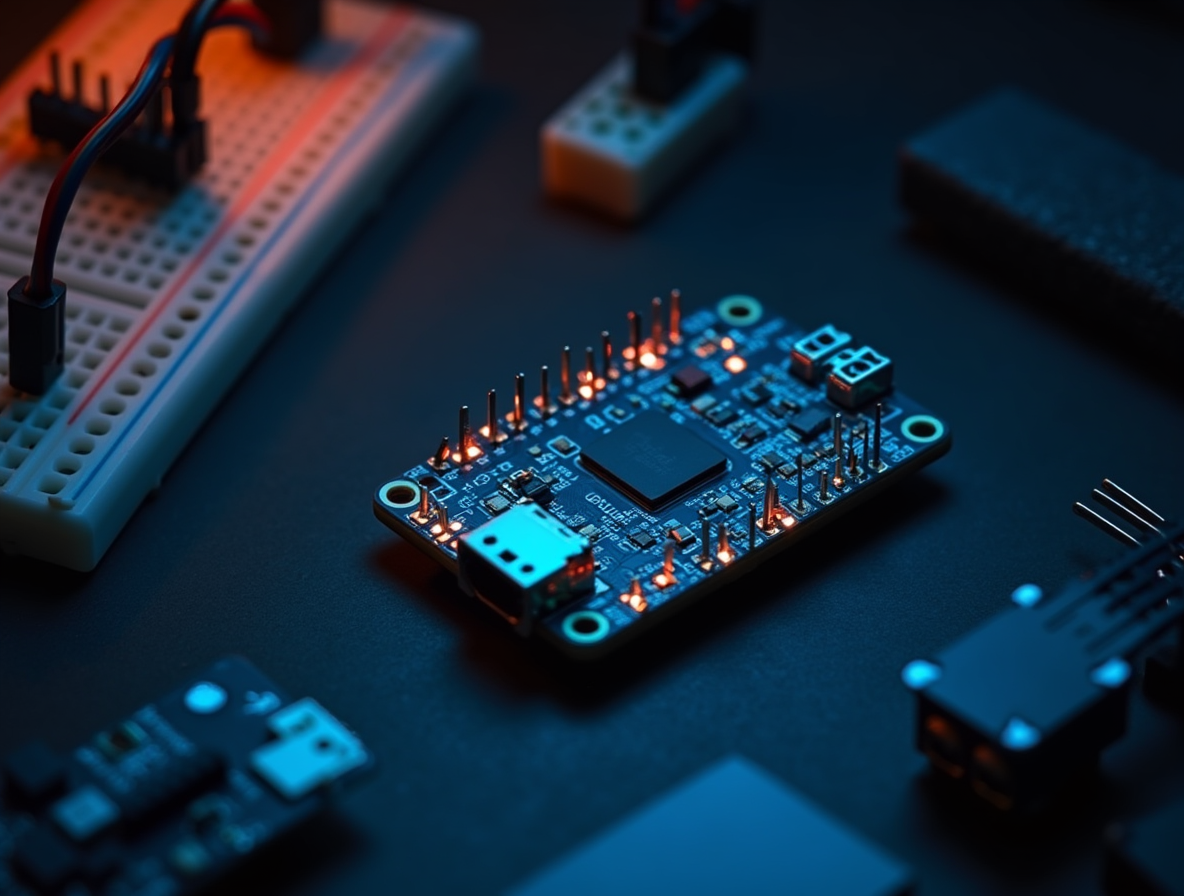
Lesson 1: Meet the ESP32-S3
A beginner-friendly walkthrough of the ESP32-S3 microcontroller — what it is, why it's the best chip for your first robot in 2026, how to install the toolchain, and how to blink your first LED. Part of the 'Build Your First Robot' course.
Welcome to the first lesson of Build Your First Robot. Before we solder anything, before we spin a single motor, we need to understand the little chip that's going to be the brain of your robot: the ESP32-S3. By the end of this lesson you'll have your development environment set up, your ESP32-S3 plugged in, and an LED blinking to confirm everything works.
If you've done Arduino before, this will feel familiar. If you haven't, you're in the right place — I'll explain everything as we go.
What you'll learn in this lesson
- What the ESP32-S3 is and why it's the best chip for hobby robotics in 2026
- How the S3 differs from the older "classic" ESP32 — and why you want the S3
- What to buy (with real links, not vague advice)
- How to install the CH343 USB driver on macOS, Windows, and Linux
- How to install the Arduino IDE and add ESP32 board support
- How to upload your first program (blink an LED)
- The pin categories on the S3 — which pins are safe and which will brick your boot
- The #1 mistake beginners make when connecting servos, and how to avoid a brownout
What the ESP32-S3 actually is
An ESP32-S3 is a dual-core microcontroller made by Espressif Systems. In plain English: it's a tiny computer on a chip that can run your code, read sensors, control motors, and talk to Wi-Fi and Bluetooth — all for about $10. It's the successor to the original "classic" ESP32 (from 2016) and became Espressif's flagship Xtensa chip in 2021.
It runs at 240 MHz like the classic, but adds vector instructions for AI workloads (it can actually run small neural nets on-device), up to 8 MB of built-in PSRAM, native USB support, and a dedicated camera/LCD interface. For robotics, these additions are a big deal.
ESP32-S3 vs. classic ESP32 — in one table
| Spec | Classic ESP32 (2016) | ESP32-S3 (2021, current) |
|---|---|---|
| CPU core | Xtensa LX6 | Xtensa LX7 (~20% faster IPC) |
| AI / vector instructions | None | Yes — ~10× faster for neural-net inference |
| USB | External chip only | Native USB — can act as HID, MSC, CDC |
| PSRAM | Optional external, slow | Up to 8 MB built-in (N8R8 variant) |
| Usable GPIO pins | ~18 | ~30 |
| Bluetooth | BT Classic + BLE 4.2 | BLE 5.0 only (no Classic audio) |
| Price (DevKit) | $3–8 | $8–15 |
| Espressif support roadmap | Maintenance mode | Active flagship |
The short version: the S3 is more powerful and more future-proof. Classic ESP32 still works great and has more tutorial coverage online, but Espressif's active development is on the S3 (and newer RISC-V chips like the C6). For a first robot today, buy S3.
Why ESP32-S3 for your first robot
- Cheap. A bare ESP32-S3 DevKit costs $8–15. A full Freenove Ultimate kit with camera, sensors, and a tutorial book runs $85 on Amazon or ¥299 (~$41) on Taobao.
- Built-in Wi-Fi + Bluetooth. No extra shields. When we get to telling your robot what to do from a phone, it's already wired up.
- Native USB. Plug it in. No CH340 driver dance (though the Freenove board still uses an external CH343 chip for better compatibility — more on that in a minute).
- Camera interface. There's a dedicated parallel camera port. Your kit's OV2640 camera plugs right in — no weird hacks. We'll use it in Lesson 8.
- AI-capable. Those vector instructions mean you can run a small person-detection or gesture-recognition model directly on the chip at 10–15 fps. In 2026 this is the price of admission for "smart" robots.
- Arduino-compatible. Same
setup()andloop()API you might already know. If you'd rather use Python, MicroPython runs on it. ESP-IDF is there for production-grade FreeRTOS work.
What to buy
You have two paths: the Freenove Ultimate kit (recommended — one box, one tutorial, everything works together), or individual parts (cheaper but more hassle).
Path A: Freenove Ultimate Starter Kit for ESP32-S3 (~$85 US / ¥299 CN)
This is the kit I'm using and the BOM this entire course assumes.
- Amazon US: Freenove Ultimate Starter Kit for ESP32-S3 (ASIN
B0BMQ2CPQN) — ~$85, Prime - Freenove official: store.freenove.com — FNK0082 (the canonical SKU)
- Taobao (China): Search
Freenove ESP32-S3 终极套件— should be ¥250–350. Look for the listing that mentionsESP32-S3-WROOM-1-N8R8and links togithub.com/Freenove/Freenove_Ultimate_Starter_Kit_for_ESP32_S3
What's in the kit:
- ESP32-S3 dev board (module: ESP32-S3-WROOM-1-N8R8 — the premium variant with 8 MB flash + 8 MB PSRAM)
- OV2640 camera module
- 1 GB microSD card + reader
- All the sensors, LEDs, resistors, servos, buzzer, speaker, and jumper wires you'll need for Lessons 1–8
- 243 components, 116 projects, 783-page tutorial book
Path B: Individual parts (~$30–40)
If you already have a breadboard and jumper wires, just grab the board:
| Item | Recommended source | Price |
|---|---|---|
| ESP32-S3-DevKitC-1 | Adafruit (Espressif official, $15) · AliExpress (cheap) | $8 – $20 |
| USB cable, data-capable (the Freenove board uses USB-C, most DevKitC-1 boards use USB-C too; check your specific board) | Any phone charging cable that has data lines | $5 |
| Solderless breadboard | Amazon (ELEGOO 4-pack) | $10 |
| Jumper wires (M-M, M-F, F-F) | Amazon (HiLetgo 200pc) | $7 |
| LEDs + 220 Ω resistors | Amazon (Gikfun kit) | $5 |
For the rest of this course I'll reference the Freenove kit's components. If you have Path B, you'll just be buying individual sensors and servos as we go.
Step 1 — Plug it in and install the CH343 driver
Here's a small wrinkle: the ESP32-S3 chip itself has native USB, but the Freenove ESP32-S3 board (and many others) still includes an external CH343 USB-to-serial chip for better compatibility and a more reliable flashing experience. That means we still need to install a driver — just a different one than the classic ESP32's CH340.
Open Terminal, then plug your board in. Run this before and after plugging:
ls /dev/cu.* | sortA new device should appear — usually /dev/cu.usbserial-XXXX or /dev/cu.wchusbserialXXXX. If nothing new appears: the driver didn't load. Re-check Privacy & Security, reboot, and try a known-good USB-C data cable (not a charge-only cable).
macOS
- Download the CH343 macOS driver from WCH (the chip manufacturer's official site).
- Unzip, open the
.pkg, follow the installer. - Go to System Settings → Privacy & Security. If you see "System software from developer 'WCH.CN' was blocked," click Allow.
- Reboot. Yes, actually reboot.
- Extra note for Apple Silicon Macs: the Freenove kit includes a file called
ESP32S3-Troubleshoot-macOS.pdfwith specific fixes if step 3's "Allow" button is missing. Check their GitHub repo if you hit issues.
Windows
- Download the CH343 Windows driver.
- Run the installer. Click "Install." Wait for the green check.
- If Windows 10/11 auto-installed a generic USB driver that doesn't work, open Device Manager, find the "USB-SERIAL CH343" entry, right-click → Update driver → Browse → point at the CH343 install folder.
Linux
CH343 support is in recent kernels. If you're on Ubuntu 22.04+ or similar, just plug it in. Add yourself to the dialout group if you get permission errors:
sudo usermod -a -G dialout $USER
# then log out and back in
To verify: plug in the ESP32-S3 with your USB-C cable. On macOS, open Terminal and run ls /dev/tty.* — you should see something like /dev/tty.usbmodem1101 or /dev/tty.wchusbserial1410. On Windows, Device Manager → Ports (COM & LPT) should show a new USB-SERIAL CH343 entry. On Linux, ls /dev/ttyACM* or ls /dev/ttyUSB*.
Step 2 — Install the Arduino IDE
You have three options for writing ESP32-S3 code. For Lesson 1, use Arduino IDE. It's the simplest and matches the majority of S3 tutorials online.
- Arduino IDE — easiest, single-file sketches, huge example library. Use this.
- PlatformIO (VS Code extension) — better for multi-file projects. Migrate to this around Lesson 4.
- ESP-IDF — Espressif's professional framework. Overkill for this course.
Install
- Download Arduino IDE 2.x.
- Install and open it.
- Go to Arduino IDE → Settings (Preferences on Windows/Linux).
- In "Additional Boards Manager URLs," paste:
https://raw.githubusercontent.com/espressif/arduino-esp32/gh-pages/package_esp32_index.json - Click OK.
- Go to Tools → Board → Boards Manager. Search "esp32". Install "esp32 by Espressif Systems" (pick a version >= 3.0.0 — S3 is fully supported from 2.0.4 onward, but 3.x has better defaults). Wait 2–5 minutes — it's downloading ~400 MB of toolchain.
- Go to Tools → Board → esp32. Select "ESP32S3 Dev Module" (note the S3 — this is different from the classic "ESP32 Dev Module").
- Go to Tools → Port. Pick the port you found in Step 1.
- Extra settings for the Freenove board: in Tools, set:
- USB CDC On Boot: Disabled (because we're using the external CH343, not native USB)
- Flash Size: 8MB (64Mb)
- PSRAM: OPI PSRAM (this is what enables the 8 MB of extra RAM on the N8R8 variant)
- Partition Scheme: Default 8MB with spiffs
In the Arduino IDE, your Tools → Board menu should now contain a long list under esp32 by Espressif. Drill down to ESP32S3 Dev Module. The dropdown next to it (Tools → Port) should show your /dev/cu.* from the previous checkpoint.
If esp32 by Espressif isn't in the list: re-open Preferences → Additional Boards Manager URLs, paste the URL again, click Boards Manager, search "esp32", install. If Port is greyed out: the IDE didn't see the board — unplug, replug, restart the IDE.
Step 3 — Your first program: blink an LED
The Blink sketch is the "Hello World" of hardware. Every microcontroller tutorial in the world starts here, and for good reason: it tests your compiler, your USB connection, and your understanding of GPIO in one small program.
Unlike the classic ESP32 which had a simple on-board blue LED on GPIO 2, the ESP32-S3 boards usually have a single RGB addressable LED (WS2812 / NeoPixel) that needs a special library — not beginner-friendly. So we'll wire up a plain external LED instead. This is actually better pedagogically — you'll understand the circuit.
Wire it up
- Take one LED and one 220 Ω resistor from your kit.
- Plug the ESP32-S3 board into a breadboard (pins straddling the center trough).
- Connect: GPIO 4 → one leg of the 220 Ω resistor → long leg of LED (anode) → short leg of LED (cathode) → GND.
- It doesn't matter which side of the resistor you use — resistors aren't polarized. It does matter which way the LED goes — the long leg is positive.
In Arduino IDE, open File → New Sketch and paste this:
#define LED 4

void setup() {
  pinMode(LED, OUTPUT);
}

void loop() {
  digitalWrite(LED, HIGH);
  delay(500);
  digitalWrite(LED, LOW);
  delay(500);
}
Hit the Upload button (right-arrow icon, top-left). You should see compile output, then:
Connecting........_____........
Chip is ESP32-S3 (QFN56) (revision v0.2)
Features: WiFi, BLE, Embedded PSRAM 8MB (AP_3v3)
Crystal is 40MHz
MAC: 34:85:18:xx:xx:xx
Writing at 0x00000000... (100%)
Hash of data verified.
Leaving...
Hard resetting via RTS pin...
The external LED on your breadboard should now blink every half-second.
If Upload fails with "Connecting....._____......" timeout: hold the BOOT button on the ESP32-S3 board, tap the EN (reset) button once while holding BOOT, release BOOT after a second. This forces it into flash mode. Some boards auto-reset correctly and never need this, others do every time.
When you see Connecting...______...___ (those underscores keep marching), the board missed its auto-reset window. Force it manually:
- Press and hold the BOOT button.
- While still holding BOOT, tap the EN (reset) button once.
- Release BOOT after about a second.
- Click Upload in the IDE.
After the upload finishes, hit EN once more to reboot the board into your freshly-flashed program. The external LED should start blinking 1 Hz.
If the LED is blinking — congratulations, you're a robotics programmer. That's not hyperbole. From here, everything we add is just "connect more things and write more logic." The core skill is what you just did.
Bonus: making the on-board RGB LED pulse
Once the simple blink is working, try the onboard RGB LED for a splash of fun. The Freenove board has a WS2812 on GPIO 48. You'll need the Adafruit NeoPixel library (install via Sketch → Include Library → Manage Libraries, search "Adafruit NeoPixel"):
#include <Adafruit_NeoPixel.h>
#define LED_PIN 48
#define LED_COUNT 1

Adafruit_NeoPixel strip(LED_COUNT, LED_PIN, NEO_GRB + NEO_KHZ800);

void setup() {
  strip.begin();
  strip.setBrightness(50); // 0-255
}

void loop() {
  strip.setPixelColor(0, strip.Color(255, 0, 0));   // red
  strip.show(); delay(500);
  strip.setPixelColor(0, strip.Color(0, 255, 0));   // green
  strip.show(); delay(500);
  strip.setPixelColor(0, strip.Color(0, 0, 255));   // blue
  strip.show(); delay(500);
}
If your Freenove board's RGB LED is on a different pin, check the ESP32S3_Pinout.png file in the kit's GitHub repo.
Step 4 — Understanding ESP32-S3 pins
The ESP32-S3 has 45 labeled GPIO pins, and far more of them are usable than the classic ESP32 (~30 vs ~18). Let's break them into four categories.
✅ Safe to use (your go-to pins)
GPIO 1, 2, 4, 5, 6, 7, 8, 9, 10, 11, 12, 13, 14, 15, 16, 17, 18, 21, 35, 36, 37, 38, 39, 40, 41, 42, 47, 48. These are full bidirectional digital I/O. Use these for your servos, LEDs, buttons, sensors — everything. Start here when designing any circuit.
That's ~28 pins, roughly 2× what the classic ESP32 gave you. It's one of the main reasons the S3 is nicer for robotics — you can wire up more stuff before you need an I/O expander.
🟡 Strapping pins — work, but tricky at boot
GPIO 0, 3, 45, 46. These control boot behavior (normal-boot vs flash-mode, log-level, voltage select). The chip samples them when power turns on. If you have external circuitry pulling them the "wrong" way at boot, the chip won't start.
Rule of thumb: don't use strapping pins for external devices that are powered before the S3 boots. If you must, add a MOSFET or relay to delay turning the device on until after boot.
🚫 Don't touch — connected to internal flash (on some S3 variants)
On ESP32-S3 modules without external PSRAM (like the N4 variant), GPIO 26 through 32 are connected to the internal SPI flash. Don't use them.
On the N8R8 variant (what Freenove ships and what you have) these pins are connected to the Octal PSRAM as well — so again, don't use them for GPIO. Treat GPIO 26–32 as reserved.
🔌 Native USB pins
GPIO 19, 20 are the native USB D-/D+ lines. On boards that use native USB (many non-Freenove DevKitC-1 boards do), you can't use these for GPIO. On the Freenove board you could technically use them since serial goes through the CH343, but leave them alone to avoid surprise — if you ever switch to native USB mode, code expecting those pins to be GPIO will break.
Essential reference: Espressif's official ESP32-S3-DevKitC-1 pinout guide — bookmark this.
Step 5 — The brownout that ends 50% of first robot builds
This is the mistake you're most likely to make when we get to Lesson 2 (motors). Flagging it now so it doesn't catch you later.
When you plug a hobby servo (like the SG90 from your kit) into your ESP32-S3's 5V or VIN pin, it looks like it works for a second. The servo twitches. You write the code. It runs. And then — the moment the servo tries to move against any load — your ESP32-S3 suddenly resets. You'll see something like this on serial:
Brownout detector was triggered
ets Jun  8 2016 00:22:57
rst:0xf (CPU_RST),boot:0x18 (SPI_FAST_FLASH_BOOT)
That's a brownout. The servo under load pulls 250–500 mA. The onboard USB voltage regulator on your dev board can only supply about 500 mA total — and it needs most of that for the ESP32-S3 itself. The voltage dips below the chip's minimum, it resets, and your robot stops.
The fix: never power servos, motors, or LED strips from the ESP32-S3's USB rail. Give them their own 5V supply (USB power bank, phone charger, or a 4× AA battery pack with a boost converter) and just share ground with the ESP32-S3.
We'll wire this up properly in Lesson 2. For now, just know it's coming.
A brownout is the chip resetting because the supply voltage dipped under the minimum. Three telltale signs:
- The Serial Monitor prints
Brownout detector was triggeredfollowed byrst:0xc (RTC_SW_CPU_RESET)or similar — every time the load engages. - Your servo twitches once, the LED blinks, then everything resets and starts over from
setup(). - Pulling the
Vinrail with a multimeter while the servo runs shows the voltage dropping below ~3.0 V.
If you see any of those, you're not debugging your code — you're debugging your power. Go back to "give the servo its own 5 V supply."
Troubleshooting cheat sheet
| Symptom | Most likely cause | Fix |
|---|---|---|
| No port shows up in Arduino IDE | CH343 driver not installed, or cable is power-only | Reinstall CH343 driver; try a different USB-C cable |
Connecting......_____...... timeout |
Auto-reset circuit didn't trigger | Hold BOOT, tap EN, release BOOT |
| Upload fails with "Permission denied" (Linux) | User not in dialout group |
sudo usermod -a -G dialout $USER then reboot |
| LED doesn't blink, but upload succeeded | LED wired backwards, or resistor missing | Check LED orientation (long leg = anode = connects via resistor to GPIO). Always include the 220 Ω resistor or you'll burn the LED out. |
| Chip keeps resetting; gibberish on serial | Brownout (peripheral drawing too much current) | Remove everything connected. Does it stop resetting? Add peripherals back one at a time; the one that triggers the reset needs its own supply. |
| "Sketch too big" error | Partition scheme set for smaller flash than you have | Tools → Partition Scheme → "Default 8MB with spiffs" (for N8R8 variant) |
| Flash failed; chip won't re-enter bootloader | Strapping pin (GPIO 0, 3, 45, 46) held by external circuit | Unplug everything from those pins, then flash |
Where to go from here
If you want to go deeper than this lesson covers before Lesson 2 ships, here's where I'd send you:
- Random Nerd Tutorials — ESP32-S3 guide: More detailed walkthrough of the same material, with screenshots.
- Espressif's Arduino-ESP32 docs: The official reference for the Arduino core. Every peripheral documented with example sketches.
- arduino-esp32 on GitHub (16.6k stars): The
libraries/folder has example sketches for every peripheral on the chip. Source of truth for any library questions. - Freenove ESP32-S3 kit repo: All the code and tutorials for your specific kit, including the
ESP32S3_Pinout.pngreference I mentioned. - MicroPython (21.6k stars): If you'd rather write Python than C, MicroPython runs on the S3. We're using Arduino C for this course because it's what 90% of robotics libraries target.
What's next
In Lesson 2 (Motors, drivers, and PWM), we'll connect our first servo, wire up a proper external power supply (so we don't trigger that brownout we just discussed), and write code that sweeps a servo back and forth. That's the last lesson before we start building the robot chassis in Lesson 3.
Hey — I'm writing and recording this course as I follow it myself. If you hit something in this lesson that breaks, or a link that's dead, email hi@robotforge.org — I'll fix it the same day.
Liked this?
Get a new one in your inbox. No spam. Unsubscribe in one click.
Comments
Sign in to post a comment.